Claude Code on your phone is useful. Claude Code on your phone with your skills, projects, and AI operating system already loaded is a completely different setup.
That is the goal here: run Claude Code on a virtual private server, connect it to Telegram, and talk to your working environment from wherever you are. Your home computer does not need to stay on because the session runs in the cloud.
The setup might sound intimidating, but the basic workflow is pretty simple. Provision the VPS, log in to Claude Code, connect a Telegram bot, lock it down to your account, and configure it to come back online after a reboot.
What You'll Learn
- Run Claude Code on a VPS independently of your home computer.
- Connect Telegram to your server session and restrict access to your paired account.
- Configure automatic startup and verify that the bot responds after a reboot.
- Bring your AI OS repository and environment configuration into the cloud setup.
1. Give Claude the Setup Instructions First
Before creating the server, grab the free setup document in my AI Automation Society community and give it to the Claude instance you already use.
I like to explain what I am doing before I start. Tell Claude that you are setting up another Claude Code instance on a VPS and that you want it to help with the process and document the finished configuration in your AI operating system, or AI OS.
This gives you a place to ask questions as you go. If a dependency is missing or a plugin does not load, you can describe the exact result instead of trying to figure everything out yourself.
Keep the setup document handy for the installation and launch commands. The workflow below explains the order and purpose of each step; the document provides the commands used for the Telegram integration.
2. Choose a Claude Code VPS
A VPS is a virtual machine hosted in the cloud. Instead of running Claude Code only on your laptop, you run it on that remote machine and access it through a terminal or, once configured, Telegram.
I use Hostinger’s Claude Code VPS hosting because it offers a template with Claude Code already installed. You can also provision a regular VPS and install Claude Code yourself. The one-click option just removes a step.
When choosing your plan:
- Compare the available CPU and RAM options.
- Choose a starting plan that fits what you want to run.
- Remember that you can upgrade later rather than committing to the largest server immediately.
- Make sure the selected application is the Claude Code template.
Hostinger also offers other application templates. I have used separate servers for tools such as n8n, Hermes Agent, and OpenClaw, but those are not required for this setup.
For annual plans, the promotional code NATEHERK offers 10% off under the advertised terms. My checkout came to roughly $100 for a year during the promotion, but pricing and seasonal offers can change.
The main reason to use a VPS is not the discount. It is having a cloud machine available independently of your home computer, with room to run your Claude Code environment and other automations.
3. Set the Root Password and Finish Provisioning
During setup, create a root password and save it in your password manager. You will need the server’s connection details if you want to access it through SSH later.
You can also enable the included malware scanner before selecting Finish setup. Provisioning takes a few minutes.
Once the VPS is ready, open its management dashboard. This is where you can find your connection information, open the web console, and reset the root password if necessary.
I also rename the server at this point. A recognizable name makes things much easier once you have several VPS instances running.
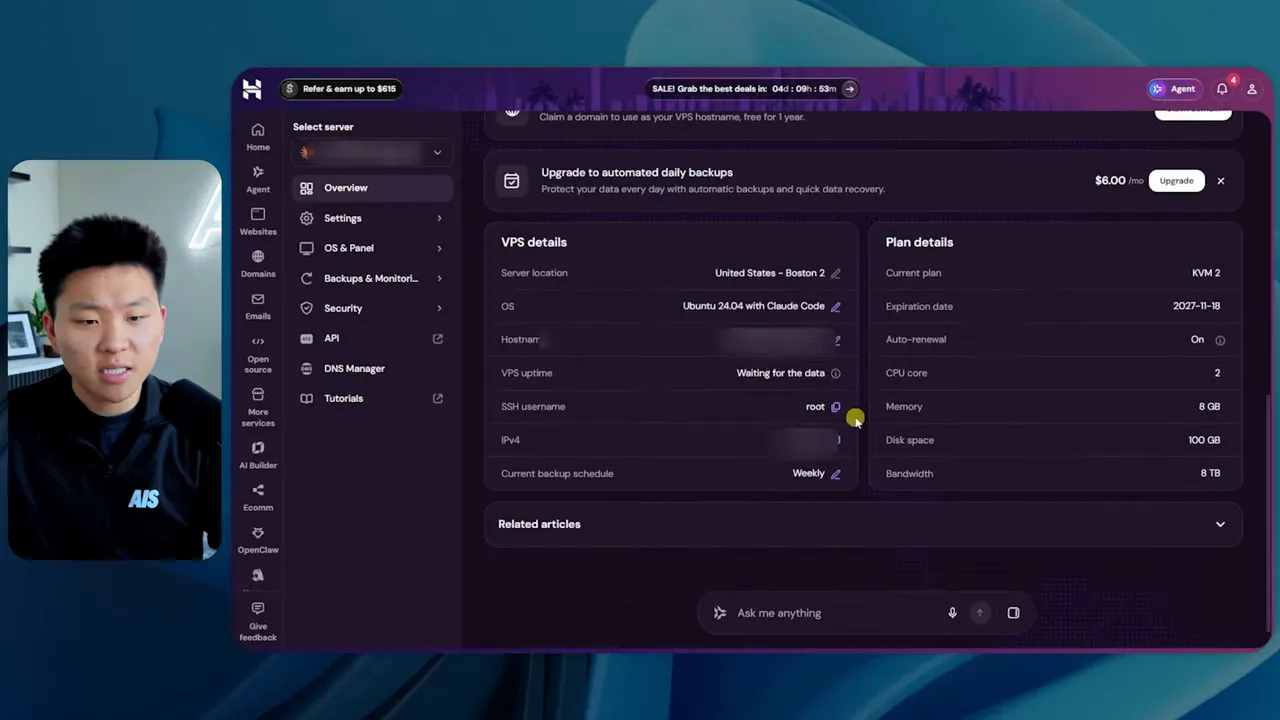
You have two ways to access the machine:
- Web console: Open a terminal directly from the hosting dashboard.
- SSH: Connect from a terminal on your own computer using the server’s connection details.
For getting started, the web console is straightforward. You do not need to set up a separate local terminal connection first.
4. Launch Claude Code and Sign In
Open the VPS web console and enter claude.
If you selected the preinstalled template, Claude Code should launch immediately. Work through the initial setup prompts, choose your preferred mode, and sign in with your Claude subscription. I used my Claude Team subscription for this setup.
Send a simple greeting to confirm that authentication worked and Claude can respond.
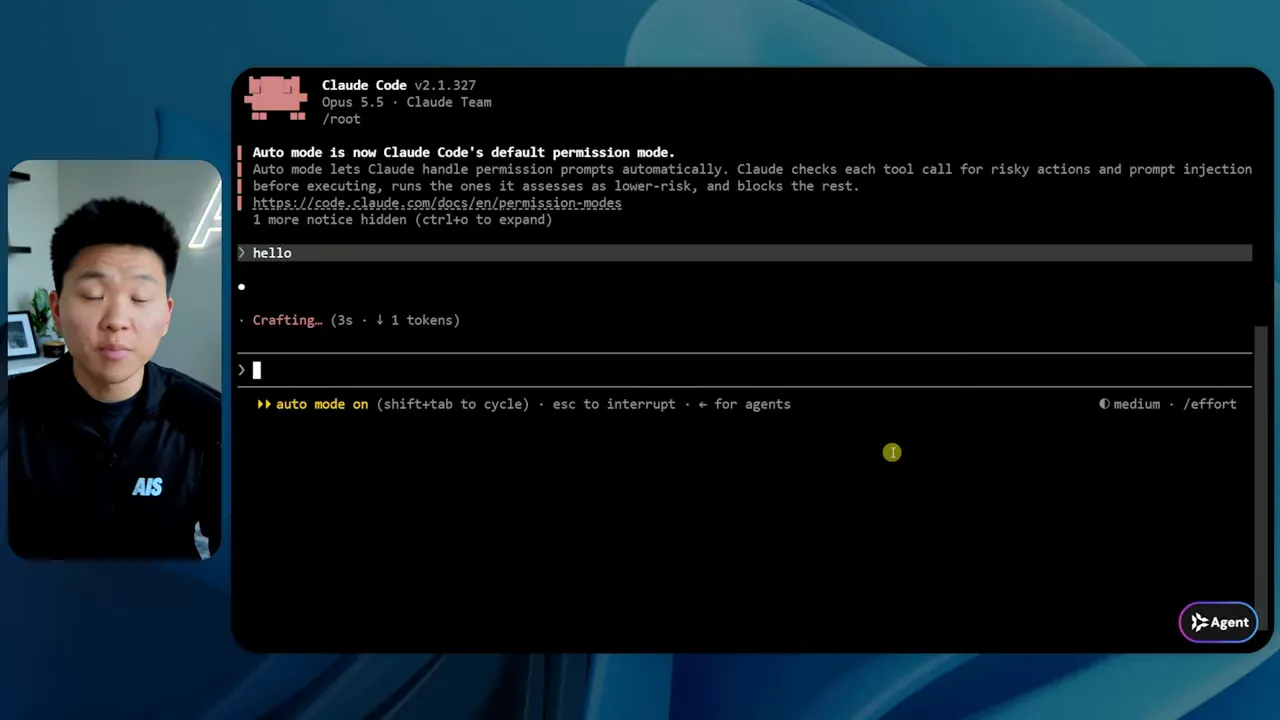
At this point, Claude Code is already running on your VPS. Telegram is optional.
If terminal access is all you need, you can start organizing your folders and files now. If your AI OS lives in a GitHub repository, clone it onto the server and work from that project directory.
The remaining steps put that environment within reach through a Telegram chat.
5. Check Bun and tmux
The Telegram integration used here requires Bun. I also use tmux to keep the terminal session running on the VPS.
Exit Claude Code temporarily and check whether both are installed. In my setup, tmux was available, but Bun was missing.
This is where giving Claude the setup document pays off. I reported that tmux worked and Bun was not found, and Claude supplied the installation commands for the server.
- Check Bun and tmux from the VPS terminal.
- Install any missing dependency using the setup instructions.
- Confirm that the installation succeeded.
- Create or enter the folder where you want to run the Telegram-connected session.
- Launch Claude Code again.
I used a temporary folder called telegram-demo while getting the connection working. You can move on to your actual AI OS project once the basic integration is tested.
6. Create Your Telegram Bot
Open Telegram on your phone or desktop and go to BotFather, the bot used to create Telegram bots.
- Send
/newbot. - Follow the prompts to choose a name and an accepted username.
- Complete the creation process.
- Keep the access token available for the next step.
I had to adjust my naming choice before Telegram accepted it. If that happens, follow the naming instructions and try again.
The access token is the piece you need to connect the bot to Claude Code on the VPS. Creating the bot alone does not establish that connection.
7. Install and Configure the Telegram Plugin
Back inside Claude Code on the VPS, run the Telegram plugin installation command from the setup document. I selected user scope during installation.
Once the plugin is active, run /telegram configure followed by a space and the token Telegram provided.
After configuration:
- Confirm that Claude Code reports the token has been set.
- Run the plugin reload command from the setup document.
- Return to Telegram and open a direct chat with your new bot.
- Select Start to begin the conversation.
The plugin connects that chat to the Claude Code session running on your server. Telegram becomes a channel into the session rather than a separate assistant with a different set of files.
If the bot does not respond
Sometimes reloading the plugin is not enough. Exit Claude Code with /exit, then relaunch it using the Telegram-enabled launch command in the setup document.
If you use a Team plan, also check your organization settings. Channels must be enabled by an organization owner or administrator.
For other issues, you can have your local Claude Code instance help investigate the VPS through SSH with authorized access. That lets it inspect the remote setup instead of relying only on your description of the problem.
8. Pair Your Account and Restrict Access
Once the connection is working, the bot should provide a pairing code and instructions for running it in Claude Code.
Complete that pairing step, then confirm that the bot only accepts messages from your Telegram user.
This matters because the bot is connected to your actual working environment. You do not want an unrestricted chat interface into your projects and tools.
- Pair your own Telegram account.
- Confirm that only your user is authorized.
- Add other people explicitly later if you want them to have access.
Now send a simple hello. You should receive a response in Telegram, and the message should also appear in the Claude Code session on the VPS.
That is the useful part: the response comes from Claude Code itself, with access to the environment you have set up on the server.
9. Make It Restart After a VPS Reboot
A working chat is not quite the finished setup.
Claude Code may be running in tmux, but you still need to handle what happens when the VPS restarts. The server coming back online does not automatically mean your Claude Code session and Telegram channel are running again.
Ask Claude to use the setup instructions to configure a background service that starts the Telegram-connected environment automatically.
Then test it:
- Confirm that the bot responds before the reboot.
- Reboot the VPS.
- Allow the server and background service to start.
- Message the bot again without manually launching Claude Code.
In my setup, the bot replied after the reboot. That was the confirmation that the automatic startup configuration worked.
Test recovery rather than assuming that running in the cloud makes the session persistent.
10. Move Your AI Operating System Onto the Server
The Telegram connection gives you access. Your AI OS gives that access value.
I cloned the GitHub repository I use every day onto the VPS. That brought over my skills, projects, and working files, so the cloud environment did not feel like starting from scratch.
You also need the environment configuration required by your tools. In my case, that meant moving over the relevant .env configuration so the server could access the APIs I normally use.
Think of this as two parts:
- Your repository: The projects, skills, instructions, and files Claude works with.
- Your environment configuration: The variables and credentials those tools need to function.
Once those are in place, test the Telegram-connected session against your actual working context. Ask it who you are and what it is supposed to help you with. Its answer is a quick way to check whether your AI OS context is available.
11. Keep the Long-Running Session Leaner
My final adjustment is the auto-compaction threshold.
A Telegram channel can become one long-running Claude Code session. I prefer to have it compact at around 400,000 tokens rather than letting the conversation grow toward the roughly 960,000-token threshold in the setup I demonstrated.
The goal is to keep the session leaner and avoid what I call context rot, where an increasingly large conversation becomes less useful to work with.
Ask Claude Code to configure the appropriate environment variable for that threshold. The 400K target is my preference for this VPS workflow, not a requirement for every model or configuration.
Save the Configuration Before You Move On
Have Claude document the finished setup inside a dedicated AI OS project or a section for your VPS agents.
Save the server name, SSH connection details, project location, startup configuration, and commands for checking or restarting the service. Keep the root password in your password manager so you can retrieve it when needed.
This is easy to skip when everything is working, but it makes future troubleshooting much simpler. You want enough information recorded that you and Claude can return to the setup without reconstructing it.
The finished result is simple: Claude Code runs on your VPS, Telegram gives you access from your phone, and your AI OS brings along the skills and projects you already use. You are not opening a blank assistant every time you leave your desk. You are reaching the working environment you have already built.


