Claude is no longer just a box where you type a question and get an answer. It can work inside your files, create presentations, connect to your business tools, coordinate multiple tasks, and keep working toward a goal without needing a new prompt every few minutes.
That is why people have started calling this wave of updates Claude 2.0. It is a nickname for the broader experience, not the name of a new model.
The easiest way to understand it is to separate five things: the brain Claude runs on, where you use it, what it makes, what it knows about you, and how you let it work independently. There are 25 concepts here, plus one useful bonus. You do not need a coding background to understand any of them.
A quick note on availability: the model versions, prices, limits, and beta features below reflect this release snapshot. Those details change quickly, and access can depend on your plan, location, verification status, or a gradual rollout. Check your account before building a workflow around a particular feature.
Key Takeaways
- Match the model and effort level to the task instead of always choosing maximum power.
- Claude Code can handle files and business workflows without requiring a coding background.
- Use memory, CLAUDE.md, and skills to preserve preferences, provide orientation, and standardize repeatable work.
- Clear completion conditions make autonomous goals and scheduled workflows easier to manage.
Table of Contents
- Part 1: The Brain Behind Claude
- Part 2: Where You Use Claude
- Part 3: What Claude Can Make
- Part 4: Teaching Claude About You
- Part 5: Letting Claude Work on Its Own
- Bonus: 26. Scheduled Tasks and Routines
- Where to Start: Three Things, Not Twenty-Six
Part 1: The Brain Behind Claude
1. AI Models: Haiku, Sonnet, and Opus
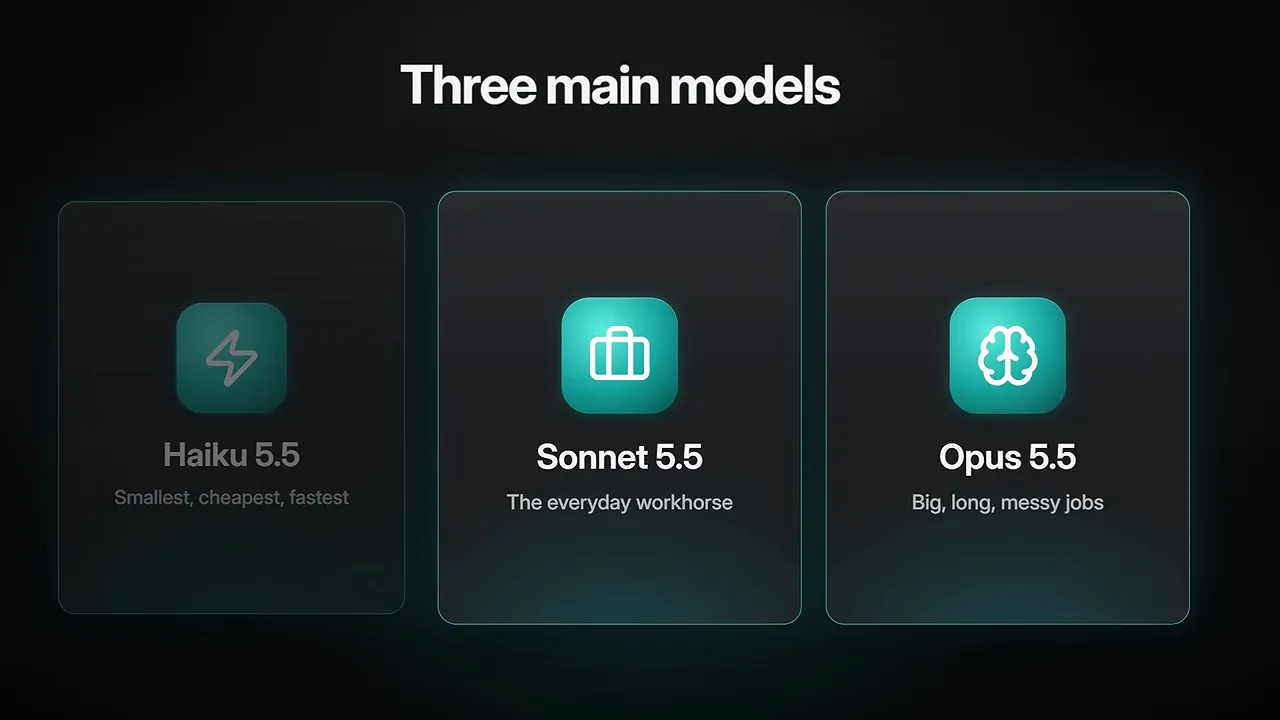
Claude is a family of AI models, not one single AI. Think of those models as different people on a team:
- Haiku: the small, fast, inexpensive option for straightforward tasks.
- Sonnet: the everyday workhorse for most regular work.
- Opus: the model for big, long, messy jobs that need more judgment.
In this release snapshot, the main family is labeled 5.5. The version numbers will keep changing, but the basic decision stays the same: match the model to the job.
You would not ask your most senior employee to handle every quick email. You also would not hand your entire strategy project to your newest hire.
I tested Sonnet against Opus across seven real workflows. Sonnet did well when the instructions were clear. For a resource guide, it finished in about 5.7 minutes compared with 9.8 minutes for Opus, and it was generally cheaper.
Opus was stronger when the goal was less defined, such as developing a 90-day plan. That is the distinction I care about more than a benchmark score: clear instructions often favor Sonnet; ambiguous work can justify Opus.
The free plan in this snapshot includes Sonnet and Haiku, but not Opus.
2. Fable and the Advisor Command
Fable 5.1 sits above Opus as a top-tier option for demanding reasoning and long autonomous tasks. Its earlier release faced government restrictions, but the practical question for most people is simpler: do you actually need that much power?
Usually, I do not. Opus is already more than enough for a lot of work. Anthropic’s release notes describe Opus 5.5 as performing near Fable level on most tasks, while Fable costs about 2.5 times as much on a pay-per-use basis.
Fable can also consume a significant part of your subscription allowance. On Max and Ultra, its allocation can reach half of your weekly limit; on Pro, access uses usage credits.
There is a middle ground: /advisor. This lets Claude consult a stronger model at important moments rather than running the entire task on that model. You get help with the difficult decisions without paying for the most expensive brain to handle every step.
3. Tokens and the Context Window
A token is a small chunk of text, often part of a word. Tokens are how AI systems measure input and output, and they affect both costs and usage limits.
The context window is how much information Claude can work with at one time. In the Claude Code setup covered here, the current models have a one-million-token window. Anthropic describes that as roughly 555,000 words, or a whole stack of novels.
But here is the part people miss: Claude can spend far more tokens reading than writing.
Across seven of my tasks, Opus read about 160 million input tokens and produced about 800,000 output tokens. That is roughly 200 tokens read for every token written.
Those totals represent processing across the tasks, not information held in one context window. The useful lesson is that the files and instructions you load matter enormously. Obsessing over a slightly shorter prompt will not help much if Claude keeps rereading a pile of unnecessary material.
4. Effort Levels
The model determines which brain you use. The effort setting determines how hard that brain works before responding.
The available levels are low, medium, high, extra high, and max. Medium is the default for the 5.5 models in this setup. You can change it with /effort or through the effort control near the bottom-right corner of the desktop app.
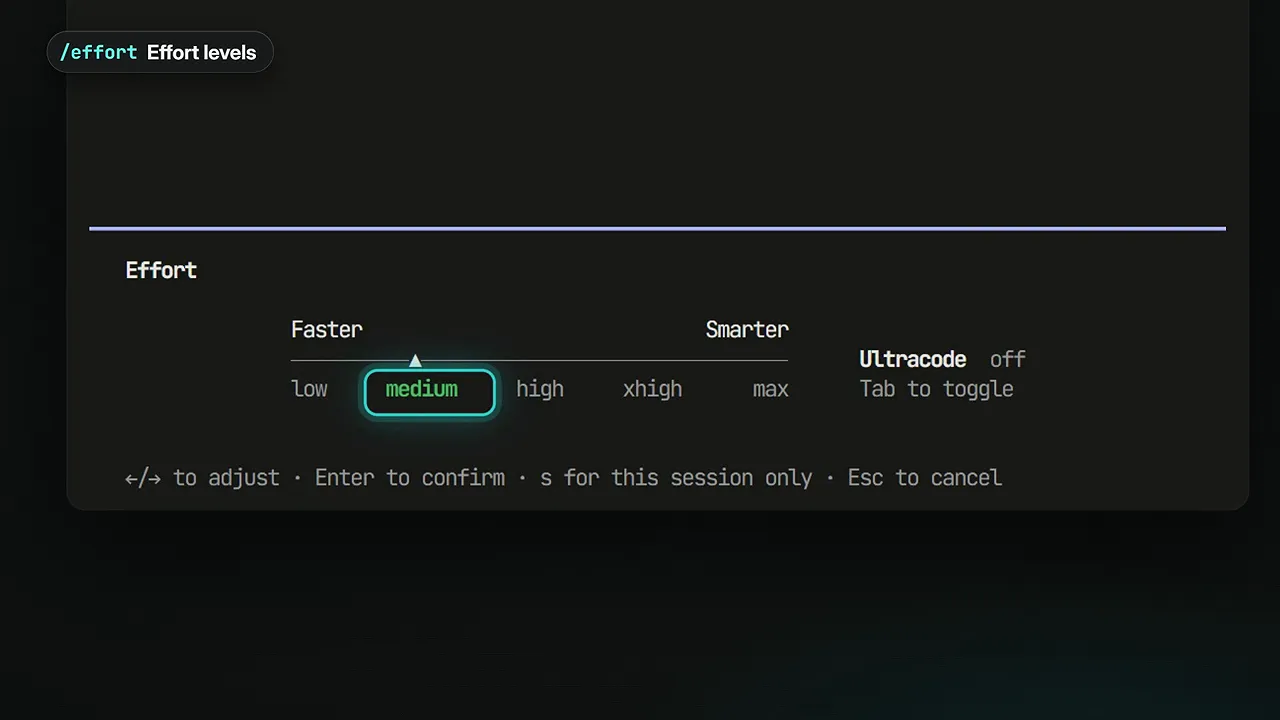
More effort is not automatically better. I gave Opus the same app-building prompt at every effort level:
- Low: about 17 minutes and under $4, but the result was very glitchy.
- Extra high: about 90 minutes and $26, with the strongest result in that test.
- Max: about two and a half hours and $50, yet the result still had bugs.
That is one experiment, not a universal ranking. But it makes the point pretty clearly: spending more time and money does not guarantee a better deliverable. Anthropic’s documentation also warns that max can overthink.
I keep medium as my everyday setting. For harder work, especially video editing, I move up to extra high. For documents and general knowledge work, Sonnet on medium can do a lot, particularly when you give it good skills.
There is also Ultracode, a separate setting rather than another effort level. It adds a more deliberate planning workflow for large tasks before Claude starts executing.
5. Usage Limits and Plans
Claude can have two limits running at once: a five-hour session limit and a weekly limit. Your Claude app conversations and Claude Code work draw from a shared subscription allowance.
The individual plans in this release snapshot are:
- Free: $0 per month.
- Pro: $20 per month.
- Max: $100 per month, with five times Pro’s usage.
- Ultra: $200 per month, with ten times Pro’s weekly usage.
Verified Ultra accounts no longer have the five-hour limit in this rollout. That does not mean unlimited usage: the weekly allowance still matters.
Max and Ultra also include $100 and $200 per month in API credits, respectively. Those are for building applications and programmatic automations on top of Claude. They are not extra usage inside the Claude Code app.
Use /usage or the small usage circle near the bottom-right corner of the desktop app to see where you stand. If a feature is missing, check your plan and rollout status before assuming something is broken.
Part 2: Where You Use Claude
6. Chat
Chat is the familiar experience: send a message, get a response, and work through an idea together.
It is where I would go for a quick search, a first draft, or help thinking something through. But it now does much more than conversation. The September 16 update brought documents, slides, and designs directly into chats.
The free experience in this snapshot also includes web search, memory, connectors, and artifacts. Those are separate concepts, but the point is that Chat is not just a question-and-answer tool anymore.
7. Claude Code
The Code tab in the desktop app is Claude Code. I know the name makes some people think it is only for developers. It is not.
Claude Code works inside a folder on your computer. It can read files, create new ones, edit existing ones, move things around, and run commands. That makes it less like a chatbot and more like an assistant that can actually do the work.
I do not come from a coding background, and neither does my team in the traditional sense. Yet pretty much my entire business runs from one folder through Claude Code.
The way I think about it is having a very capable technical friend who understands normal language. You explain the outcome you want, and it handles the technical steps.
That includes work people would not normally associate with coding. For my videos, I provide the footage and use Claude Code to help remove mistakes, assemble supporting visuals, and put the edit together.
Claude Code is included with Pro and higher subscriptions in this snapshot. The Claude Code documentation is a useful reference for understanding the working environment.
8. Cowork
Cowork brings that goal-driven style of assistance to work that is not primarily coding. You give it an objective, it works across files and connected tools, and you return to a deliverable you can review.
Examples include checking a folder of contracts against a playbook or reconciling regional exports into a spreadsheet.
My personal preference is still to learn Claude Code. If I might eventually need its flexibility, I would rather build familiarity with it now. That is a workflow preference, though. Cowork is another entry point for getting real work done without treating every task as a long chat.
9. Sessions
A session is an individual Claude Code conversation with its own history and working folder context.
You do not have to put everything into one giant conversation. You can have one session researching, another writing, and another building something.
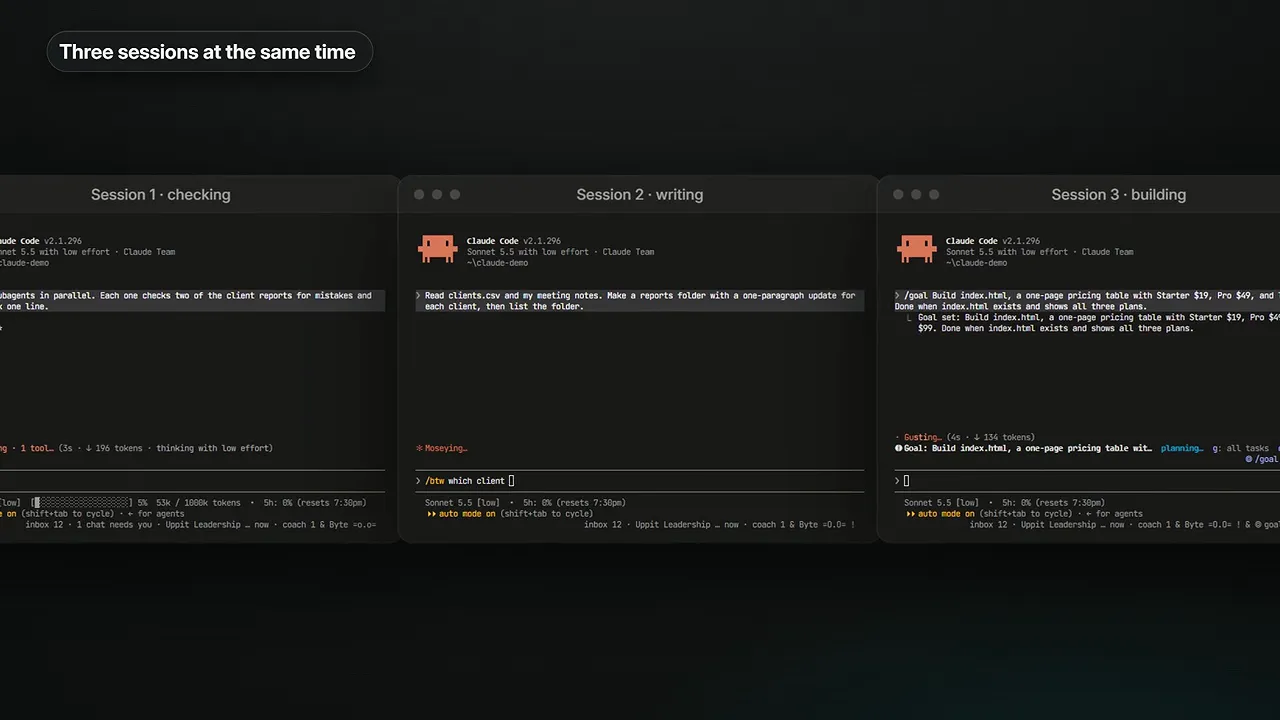
On Mac, Command + N opens a new session, and split view lets you work with two side by side. Claude can also message and manage other sessions.
I have run 18, 20, or even 30 sessions while comparing models. At that scale, coordination matters. I built a modification that warns me when two sessions are about to edit the same file.
Remote Control lets you check in on a computer’s sessions from your phone. That is useful when you want to step away without losing touch with the work.
10. Side Chats
Sometimes you need to ask a quick question halfway through a large task without pulling the main conversation off course.
That is what side chats are for. Use Command + ; or type /btw to open one.
The side chat can see the main session’s context, but what you say there does not get added back into the main conversation. It is a useful place for a clarification or a tangent.
Do not treat it as permanent storage. In the desktop app behavior covered here, closing a side chat removes it rather than saving it.
11. Claude Duet
Duet is a separate agent app built around a more proactive relationship with Claude. You message it by typing or speaking, and it works in the apps you have connected.
Instead of waiting for you to ask every question, it can scan your email and calendar in the morning, flag items that need attention, and draft replies for review. It can also follow up on threads that have gone quiet.
That autonomy has boundaries. It is designed to ask before sending a message, making a payment, signing a document, or deleting something.
In this release snapshot, Duet is a US-only research preview with a waitlist for Pro, Max, and Ultra subscribers.
Part 3: What Claude Can Make
12. Artifacts
An artifact is a deliverable Claude creates that opens beside the chat. It could be a document, slide deck, design, dashboard, or small interactive tool.
The important distinction is that an artifact is something you can use and revisit, rather than just another paragraph in a conversation.
I have used artifacts for our October all-hands deck, internal applications, dashboards, and even a trip planner I could share with friends. They start private and remain that way unless you share them.
13. Docs, Slides, and Design
These are three common artifact formats:
- Docs: written documents.
- Slides: presentations and decks.
- Design: visual work such as landing pages and app mockups.
The October 8 update moved all three out of beta and made them available on every plan, including Free. Anthropic reported more than 45 million documents, decks, and designs created.
The biggest workflow change is that Design now lives inside the conversation. You no longer need to move to a separate app to use it.
The older standalone Design site was scheduled to close in December following this rollout. If you have work there, check the transition details rather than assuming the old location will remain available.
14. Dashboards
Dashboards start with a business question in plain English. Claude pulls information from connected data sources, builds the dashboard, and keeps it current as the underlying data changes.
Supported sources discussed in this rollout include BigQuery, Snowflake, Databricks, and Salesforce.
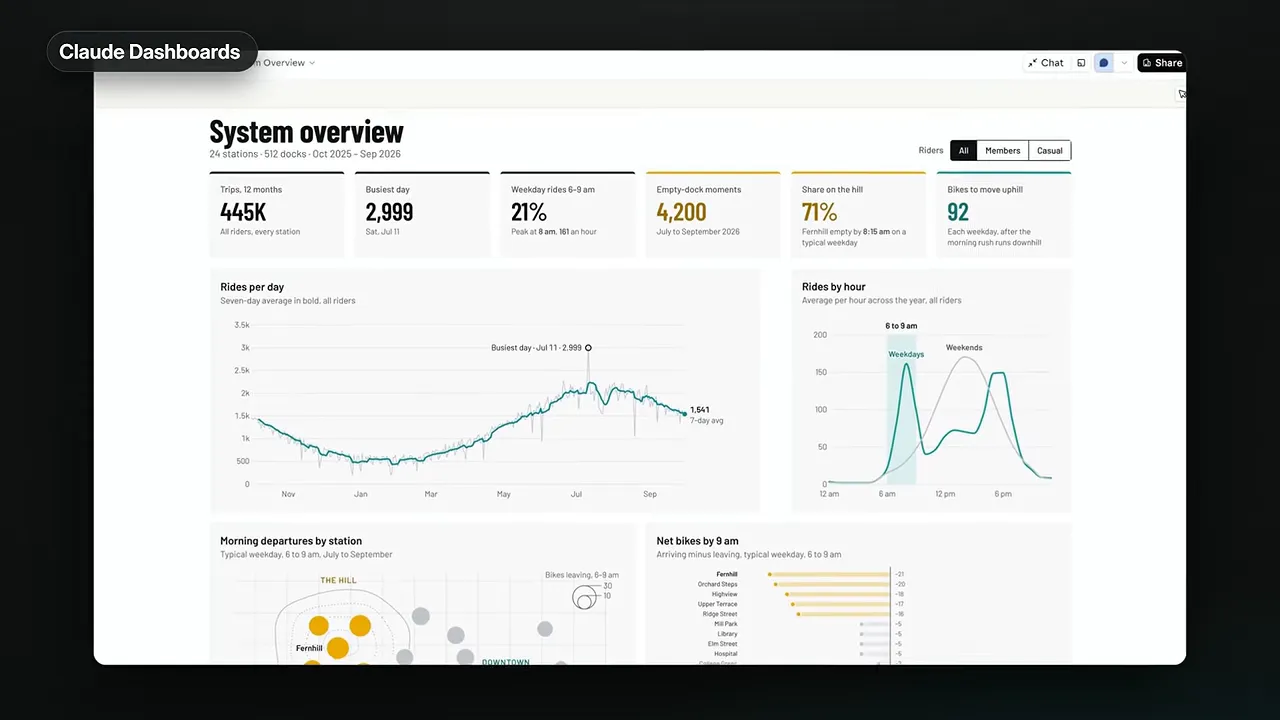
The detail I really like is traceability: you can click a number to inspect the query behind it. You are not limited to trusting a nice-looking chart with no way to check how the answer was calculated.
Dashboards are in beta on paid plans in this snapshot. Missing access can simply mean the feature has not reached your account.
15. Motion
Motion turns a prompt into a short animated explainer that you can download as an MP4.
This is different from asking a video-generation model to invent footage. The animation is built with code. It does not depend on generating fake people or synthetic camera scenes.
I use a similar approach for my own motion graphics, often with Hyperframes, a free, open-source tool. Claude Code helps build the animation, and the underlying code makes revisions much easier to control.
If I want a different color or a larger element, I can change that specific property rather than asking a video model to regenerate the whole scene and hoping everything else stays consistent.
Motion is in beta for Team and Enterprise in this release snapshot. Broader availability is something to check, not assume.
Part 4: Teaching Claude About You
16. Memory
A new conversation does not automatically contain everything from every previous conversation. Claude needs relevant information brought into its context.
Memory is one way information carries across conversations. In the Claude app, it is available on every plan in this snapshot, including Free.
Claude Code also has auto memory. It writes notes based on your corrections and preferences, then reads relevant notes in later sessions.
I have more than 150 of those notes across my projects. One exists because I repeatedly corrected the spelling of “Grok Bot” to include a space. That is not a dramatic piece of intelligence, but it is exactly the kind of tiny recurring correction I do not want to make forever.
The model itself is not being retrained on every correction. The practical improvement comes from keeping useful notes and loading them when needed.
17. CLAUDE.md
If memory is what Claude writes down, CLAUDE.md is what you write down.
It is a plain-text Markdown file containing your instructions, rules, and project guidance. Claude loads it at the beginning of a session.
Mine explains Claude’s role in my business, establishes a few operating rules, and then maps where information lives. Need business contacts? Go to this folder. Need brand assets? Go to that one.
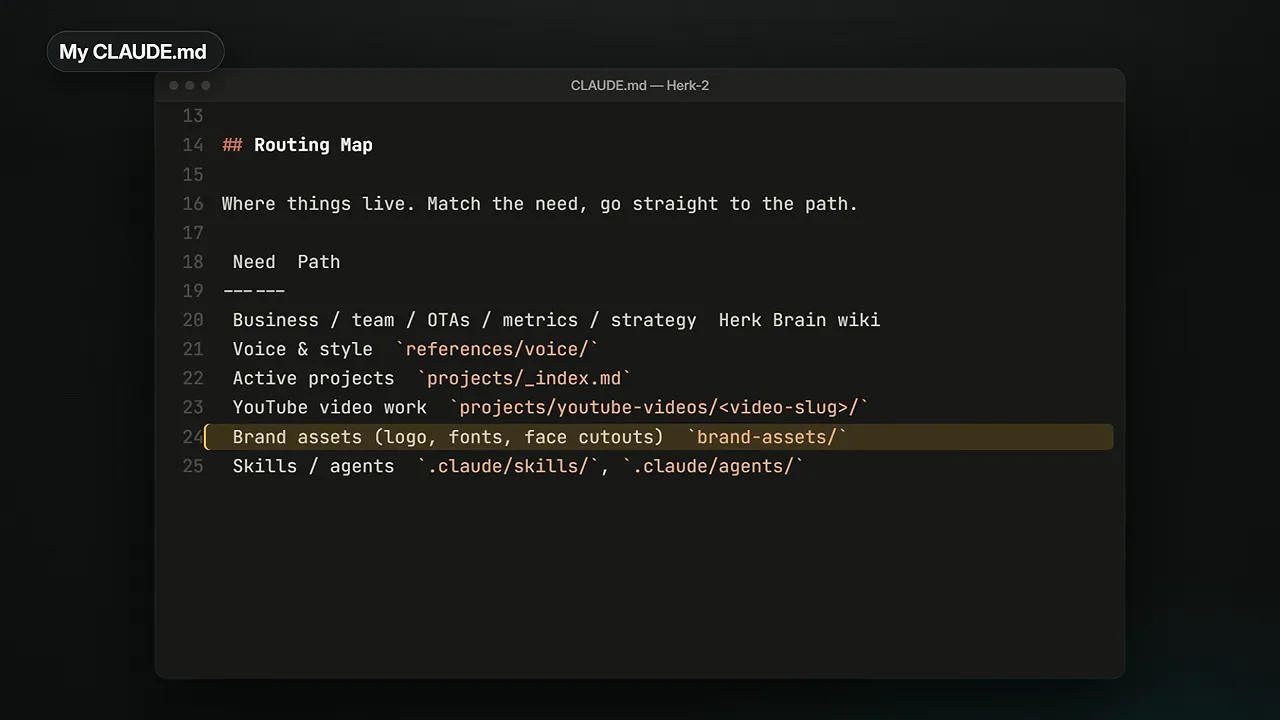
Keep this file lean. Because it loads repeatedly, a bloated instruction file creates recurring reading overhead. A useful guideline is to keep it within about 200 lines and point to detailed resources elsewhere.
The goal is to help Claude find what it needs, not force it to read your entire business handbook before every task.
18. Skills
Skills are probably my favorite Claude Code feature.
A skill is a saved set of instructions for a specific job, centered on a file named SKILL.md. Markdown is simply readable text with structure such as headings, bullet points, and bold formatting. You do not need to think of it as programming.
Claude can load a relevant skill when it recognizes the need, or you can invoke one yourself by typing a slash followed by its name.
Skills are efficient to keep around because Claude initially sees a short description, not every instruction in every skill. It loads the detailed content when the skill is needed.
I have more than 100 skills, and most started the same way: I noticed myself explaining the same process repeatedly.
For example, I kept asking Claude to process a YouTube video into my Google Sheets master database and wiki. After doing that roughly 15 times, I turned the process into a /process-video skill.
A skill might be two instructions or a workflow that takes an hour. What matters is that it captures a repeatable process.
After creating a video, my workflow includes separate skills for:
- Processing the video into our systems.
- Creating LinkedIn content.
- Creating an X article.
- Handling upload work.
- Preparing packaging.
Instead of reexplaining each process, I call the appropriate skill. If you have done something twice, consider whether it deserves a skill. Recurring deliverables are especially good candidates.
19. Connectors and MCP
Connectors give Claude access to applications you already use, such as Gmail, Google Calendar, Google Drive, Slack, and ClickUp.
Without a connector, you are often copying information out of one app, pasting it into Claude, then copying the result back. With a connector, Claude can read information and, where supported and permitted, take actions directly.
That is a big part of the difference between a chatbot and an agent: access to tools that let it do something with the answer.
Many connectors use MCP, or Model Context Protocol. You do not need to understand its internals to use it. Think of it as a standard way for an AI application to communicate with tools and data sources. The MCP introduction explains the underlying idea if you want more detail.
Connectors are available on Free in this snapshot. My own command center connects to ClickUp, Slack, and Gmail so I can work across them without constantly changing applications.
20. Plugins
A plugin is a package you install in one go. It can bundle skills, commands, connectors, and agents.
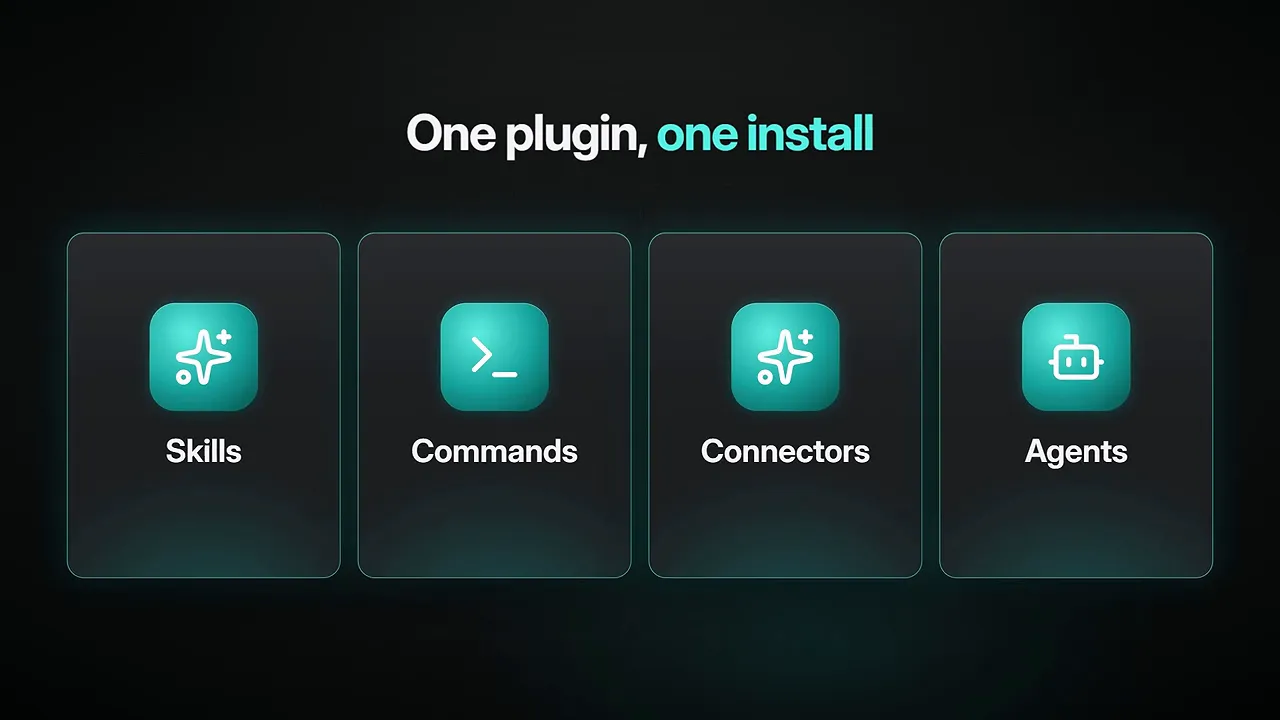
Skills tell Claude how to do a job. A plugin makes a collection of capabilities easier to distribute and install.
Anthropic has a directory for discovering plugins, and companies can ship their own. Salesforce, for example, has a sales plugin in beta in this rollout.
For a team, the benefit is consistency. We use an AIS branded-document package so externally facing documents follow the same style. Instead of asking everyone to remember the brand rules, we make the relevant skill part of the workflow.
21. Mods
A mod is a type of plugin that changes how Claude Code itself works. It can add commands and tools or customize parts of the interface, such as a panel beside the conversation.
You can describe the modification you want and have Claude build it. You do not have to begin by writing the implementation yourself.
I have seven mods in my setup. They include:
- A cache keeper intended to reduce rereading when I return from a break.
- A goal-progress display with a breakdown of tasks.
- A warning when two sessions are about to edit the same file.
- A pixel cat named Byte that lets me know when another session finishes.
Some are fun. Some solve very real coordination problems. The useful question is: what do you repeatedly wish the app could show you or handle for you?
Part 5: Letting Claude Work on Its Own
22. Permission Modes
Permission modes control how much Claude asks before taking action. The five modes covered here are:
- Manual: asks before editing files or running commands.
- Accept edits: permits file changes but still asks before most commands.
- Plan: investigates and proposes a plan without making changes.
- Auto: removes routine permission prompts while using background checks to assess whether actions match your request.
- Bypass permissions: skips almost all permission prompts, also described as dangerously skipping permissions.
I normally use Auto. In this rollout, it became the default for new sessions on Pro, Max, and Team.
If you are nervous, start in Plan mode. Read what Claude proposes, then decide whether to let it execute. That gives you a much clearer understanding of what it intends to do.
Auto is not the same as bypassing permissions, and fewer prompts do not mean guaranteed safety. Choose the level of autonomy that fits the files, tools, and consequences involved.
23. Subagents
A subagent is a helper Claude delegates a specific job to. It works in its own context window and returns a smaller result or summary to the main session.
That keeps messy research and detailed searching from filling the main conversation. It helps preserve useful context, although the helper still does work and consumes usage of its own.
My “Roast Room” skill uses this idea. I ask a business question, and custom subagents simulate different business perspectives inspired by people such as Alex Hormozi, Jeff Bezos, and Warren Buffett.
Those are AI-created perspectives, not advice from the actual people. The point is to make the helpers challenge one another before returning a recommendation instead of accepting the first agreeable answer.
24. Projects
“Project” can mean two different things, which is why this term gets confusing.
- In the Claude app: a project groups related chats with shared files and instructions.
- In the Claude Code Projects feature: a project coordinates an ongoing stream of related work, with separate task threads.
In the second case, you describe what needs doing, and Claude can start a separate thread for each task. Cloud-based threads can run in parallel and continue after you close your laptop, with progress available from your phone.
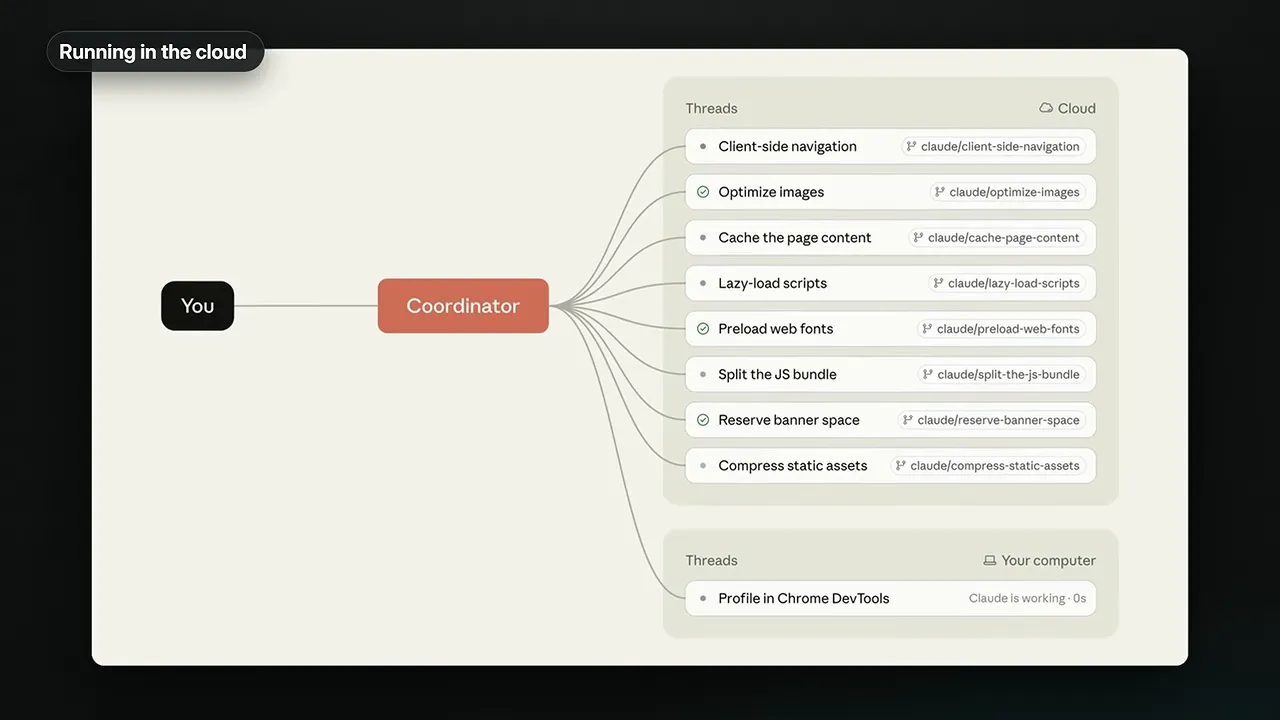
The distinction from subagents is scope. A subagent is a helper within a session. A coordinated project can give each task a full session of its own.
Claude Code Projects is in beta on Pro, Max, and Ultra in this snapshot, with access still rolling out.
25. /goal
Normally, Claude completes a turn and waits for your next message. With /goal, you give it a finish line, and it keeps working across turns until it meets that condition.
This has become a big part of how I work. Roughly 20% of my prompts use it, and much of the research behind this guide ran under a single goal.
The important part is not the slash command. It is defining what done means.
If the finish line is vague or impossible to verify, Claude can get stuck repeatedly trying to satisfy it. A clear deliverable and an observable completion condition are much more useful than a broad request to keep improving something.
Skills and goals work well together: the skill supplies the process, while the goal supplies the condition that tells Claude when to stop.
Bonus: 26. Scheduled Tasks and Routines
Scheduled tasks let Claude run work at a particular time, such as every morning or every Monday.
Routines are the cloud-based version of that idea. They can run on a schedule or respond to events from connected tools.
I use one workflow to update my website statistics every Sunday and another to post carousels every four hours.
You can set these up in normal language. Tell Claude when the task should run and which skills it should execute. Instead of manually launching the same sequence every day, you make that sequence repeatable.
The distinction matters when you step away: desktop-scheduled work and cloud routines are not the same execution environment. Use the cloud option when the workflow needs to continue independently of your local session.
Where to Start: Three Things, Not Twenty-Six
You do not need to set up every feature today. If I were starting from scratch, I would focus on three things:
- Create a lean CLAUDE.md. Explain Claude’s role, your essential rules, and where important information lives.
- Build one skill. Pick the task you repeat most often and save the process so you stop explaining it.
- Try a few /goal prompts. Give Claude a clear finish line and practice reviewing the completed work.
Those three pieces fit together naturally. CLAUDE.md provides orientation. A skill provides the process. A goal provides the destination.
From there, add connectors, parallel sessions, subagents, and scheduled work when a real workflow calls for them. That is how you move from occasionally asking AI for help to building an AI operating system around the way you actually work.
My free AI Automation Society community includes the full AI operating system course, a setup plugin, and the cheat sheet covering these concepts and plan access.


